print("Hello, World!")Hello, World!
Welcome to your first notebook of the semester! Throughout the semester, you’ll be using Jupyter Notebooks like this one to learn practical skills in data analysis. The notebooks will consist of brief tutorials that reiterate some of the concepts you’ve learned in class, along with some basic exercises that test you on some of these skills. Notebooks will be assigned most weeks during the semester, and are due the following week.
To get started, click File > Save a copy in Drive to save your assignment in your personal Google Drive. By default, the notebook will be found in a “Colab Notebooks” folder in your Drive. Rename the notebook by clicking the name of the notebook at the top of the screen and replacing “Copy of” with your last name.
This notebook includes a series of exercises to introduce you to the basics of programming in Python. You’ll learn, in general terms, about data types in Python, and how to make basic manipulations of these data types.
Python is rapidly becoming the introductory programming language of choice at universities across the country, and for good reason. This is aptly summed up in the popular web comic XKCD:
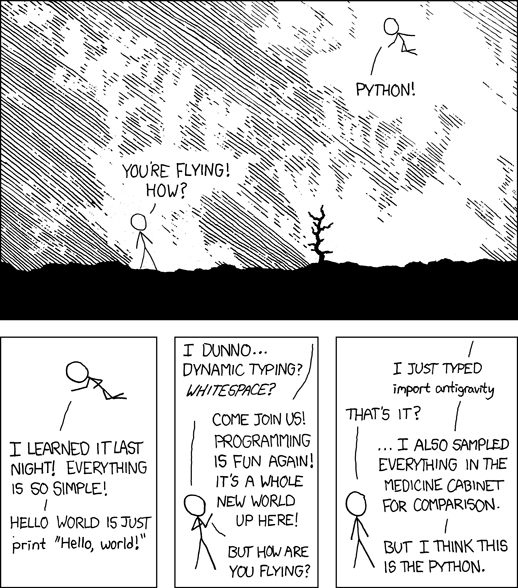
Python combines simplicity of syntax with relative computational power, which makes it an attractive language of choice for many programmers. The classic introductory programming problem is how to get a language to return the phrase, “Hello world.” In the Java language, for example, it looks something like this:
public class HelloWorld {

    public static void main(String[] args) {
        System.out.println("Hello, World");
    }

}
Compare that with Python:
print("Hello, World!")Hello, World!Much simpler! Now, Python is not always going to be your language of choice for every application. Python is an example of an interpreted programming language, which means that it is converted on-the-fly to machine code - that is, code your computer can understand. This can make development simpler, but generally executes slower than compiled languages, in which the source code must be run through a compiler before it is executed. This additional step, however, can speed up execution substantially, which is why compiled languages like Java, C, or C++ are sometimes preferred for software development.
However, Python is an outstanding choice for data analysis, which is highly interactive and requires the testing of many different ideas on-the-fly. Indeed, the Python community has built a robust infrastructure for data analysis with the language, which includes the Jupyter Notebook, which we are working in right now.
The Jupyter Notebook is an example of literate programming, in which documentation and computer code are tightly integrated. The notebook itself is comprised of “cells” that either accept Python code, or text written in Markdown, a highly-simplified syntax for writing HTML code. To choose a Python or Markdown cell, simply change the option from the drop-down menu at the top of the screen. To “run” the contents of your cell, click the “run cell” button from the menu at the top of the screen, or use the keyboard shortcut Shift+Enter.
Tools like the Jupyter Notebook are an excellent way to document your workflow, and make your work reproducible. Over the course of a data analysis, it is often challenging to remember every small step you have taken, or the rationale behind those steps. With the notebook, you can include descriptions of your workflow along with the actual code you used to do your data analysis.
You already saw how to print text using Python using the print command. Now, I’m going to take you through a few of Python’s basic data structures. At its most basic level, Python can function like a calculator. For example, I can type in a simple calculation…
2 + 24…and I get 4. Try it out yourself!
## Type in a calculation below and run it!

# By the way: this is an example of a comment.  Comments in Python are preceded by the hash (#) operator.  All text that follows
# the hash will be bypassed at runtime - so this is a good way to make notes about your code, or to "comment out" code that you want
# to keep, but don't want to run.
In addition, Python can work with strings, which are textual representations of data. Strings are enclosed in single quotes ' ' or double quotes " ". Like numbers, strings can be “added” together; however, instead of performing a numeric computation, Python will concatenate the strings, combining them. Take the following example:
"a" + "b"'ab'Now, let’s see what happens when we try to combine a string and a number:
"a" + 4--------------------------------------------------------------------------- TypeError Traceback (most recent call last) <ipython-input-6-3d99485a6381> in <module> ----> 1 "a" + 4 TypeError: must be str, not int
We get an error message back - ‘str’ and ‘int’ objects cannot be concatenated, as they are different data types. However, we can convert between different data types by converting our objects. For example, the str command converts to a string, the int command converts to an integer, and the float command converts to a floating-point number, if possible. Let’s try it out:
"a" + str(4)'a4'You now have a very basic sense of how Python works. To this point, every cell that we’ve run has directly accepted content. However, in your work with Python, you are going to want to store information that you’ll need to come back to later, or re-use certain objects in your code. As such, you will want to work with variables.
Variables are Python objects that represent some other thing. They can be just about any Python data type (more on these data types later) and are defined through assignment with the equals (=) operator. Let’s give it a try:
x = 4

print(x)4In the above cell, I assigned the integer 4 to the variable x. When I asked Python to print the variable x, it returns the integer 4, which is what is represented by x.
If you’ve programmed in other languages before, you probably noticed that I didn’t have to declare the type of my variable when creating it. Python is an example of a dynamically typed language, which means that the types of objects are mutable (can change) and do not need to be declared. Instead, Python detects the type of the object based on the assignment I made. Let’s check it out with the type command.
type(x)intPython knows that x is an int (integer) as I assigned an integer, 4, to x. Other languages, like Java, are known as statically typed programming languages, as object types need to be declared. For example, assignment in a statically typed language might look like this:
int x = 4;In my opinion, the dynamic typing of Python makes it well-suited for the exploratory nature of data analysis.
As my variable x is an integer, I can perform mathematical operations with it. For example, I can multiply it by two with the * operator, or raise it to the second power with the ** operator:
x * 28x ** 216# Now you try! Write an expression that adds 5 to x, then divides the result by 2. What do you get?
Variable types can also be converted to other types through conversion, like I showed your earlier. Conversion operators in Python include int (integer), long (long integer), float (floating-point number), and str (string/text).
Let’s give it a try. In the space below, we’ll create a new variable y by converting your variable x to a string. Then, we’ll type y and run the code to see what we get.
y = str(x)

y'4'We see a ‘4’ returned in quotations – this means that your variable y stores the value 4, but in string rather than number format. As such, we cannot do math with our new variable…
y + 12--------------------------------------------------------------------------- TypeError Traceback (most recent call last) <ipython-input-14-57c9e32a130f> in <module> ----> 1 y + 12 TypeError: must be str, not int
print("OMG I heart U " + y + "ever!!!111")OMG I heart U 4ever!!!111Now, try it out yourself! Create a new variable, z, by converting y to a floating-point number, and then divide z by 3. What do you get?
### Run your code here!You should have a sense to this point of the flexibility of variable assignment in Python. However, to this point we’ve only been working with variables that store one value - and you’ll be working a lot with multiple values in Python.
The most common data structure for multiple values in Python is the list. Lists are enclosed in brackets [], and can contain a series of values, objects, variables, etc. Objects in a list need not be of the same type; however, keeping the types within lists consistent will maximize what you can do with them.
Let’s take a look at a sample list of numbers, and assign it to the variable mylist.
mylist = [2, 4, 6, 8, 10, 12]

print(mylist)
[2, 4, 6, 8, 10, 12]To retrieve specific elements within my list, I can use indexing. Indexing is a common operation in Python to subset your data - this will be very important for you when working with datasets later on. Indices are similarly enclosed in brackets. In Python, the index starts at zero; as such, 0 returns the first element, 1 the second element, and so on. Let’s try it:
## This should give me the second element of my list, 4.

mylist[1]4Chunks of your list can also be retrieved through slicing. To slice a list, index with the first element you want, followed by a colon : operator, then the index of the first element you do not want. For example, let’s retrieve the second through fourth elements of mylist, which should give us back 4, 6, and 8.
mylist[1:4][4, 6, 8]You can also add other lists to your lists. Let’s try it:
mylist + [14, 16][2, 4, 6, 8, 10, 12, 14, 16]This can also be achieved with the append command, which will modify the existing list.
mylist.append(18)

mylist
[2, 4, 6, 8, 10, 12, 18]Notice that the append command shows up as a property of your list - that is, a method you can use to modify it. In the Jupyter Notebook, you can get a list of possible methods for your list by pressing Tab after typing a period after your list’s name. Try it out:
# Press "Tab" after the period to see what I'm talking about!
# Be sure that you've run the above cell defining mylist beforehand.

mylist.
Notice a series of methods available to you to manipulate the contents of your list. You can read more about the different list methods here.
Let’s try a couple:
mylist.reverse()

mylist
[18, 12, 10, 8, 6, 4, 2]mylist.extend([22, 44])
mylist[18, 12, 10, 8, 6, 4, 2, 22, 44]mylist.insert(5, 99) # The insert command here will place, at index 5, the number 99
mylist[18, 12, 10, 8, 6, 99, 4, 2, 22, 44]Now, try working with a list of your own! Do the following:
## Run your code here!Strings, or textual representations of data, have a series of special methods that allow for their manipulation. In the Jupyter Notebook, these methods are available by pressing the Tab key after typing a period after the variable that stores the string. Let’s test it out.
tcu = "Texas Christian University"# Place your cursor after the period, and press the tab key to view the methods
# Be sure that you've run the previous cell first!
tcu.Notice all the different methods available to you; you can view them in detail here. In the IPython notebook, you can also see the parameters of the different methods by typing Shift + Tab after typing the first parenthesis. Let’s try a few.
tcu1 = tcu.swapcase()

tcu1
'tEXAS cHRISTIAN uNIVERSITY'tcu2 = tcu.replace('Christian', 'Construction')
tcu2'Texas Construction University'tcu3 = tcu.upper()
tcu3'TEXAS CHRISTIAN UNIVERSITY'## Here, we are retrieving the second word of the string (indexed at 1) with the 'split' command.
tcu4 = tcu.split()[1]
tcu4'Christian'Like lists, strings can also be indexed or sliced; in this instance, the index refers to the different characters in the string.
tcu[0:5]'Texas'Every notebook you are assigned each week will culminate with a series of exercises to help you solidify your skills in programming, data analysis, and visualization. You are welcome to work together on these exercises, and you can use Colab’s embedded AI assistant to help you with them. My recommendation: try to complete the exercise first without AI, then only use AI when you get stuck or to help provide an explanation.
Exercise 1: Create a new cell below with the “Add text cell” option. Change the cell type to Markdown from the drop-down menu at the top of the screen. Practice writing some Markdown in the cell. The cell should include a numbered list of links to your five favorite websites, with an H2 header for the title. The links should not simply be the website URLs, but should instead show the name of the website, which you can click to get to the website. Also, make the name of the first entry in bold, and the name of the second entry in italics.
For Markdown tips, take a look at the Markdown cheatsheet at this link. Also, a tip: you can view how I wrote Markdown in any of the cells in this notebook by double-clicking the cells!
Exercise 2: Create a new variable, name it whatever you want, and assign your full name to it in fully lowercase letters. Then, use Python string methods to capitalize it appropriately. Add a comment to your code explaining what you did.
Exercise 3: Assign the list ['a', 'b', 'c', 'd', 'e'] to a variable. Reverse the list, then insert ‘z’ at index 3, and finally append ‘o’ to the end.
Exercise 4: (Modified from your textbook): A string slice can use an optional third index to specify the ‘step size’, which refers to the number of spaces between characters. Your textbook gives the following example:
fruit = 'banana'

fruit[0:5:2]'bnn'The same result could be achieved, however, by omitting the 5, as the above example uses the whole string:
fruit[0::2]'bnn'In the cell below, I will provide you with a string of characters that may appear quite random at first. Run the cell to assign the string to the variable code. However, the string is in reality an encoded message, in which the character to keep is at every fourth character.
Use Python string slicing to decode the message, and print the result to your notebook. The result is a familar expression, so if you are not getting a result that makes sense, try again!
code = 'varCjjlopaxntrrgnbXrOPraiiItUuUuzaQlliyaxx*t#rgiffFoce&ntPls87C!'# Your answer goes here!Exercise 5:
You’re working for the TCU Registrar, and you’re asked to use your programming skills to generate new email addresses for incoming freshmen. You’ll be using string-parsing skills that you’ve learned in Python, and you’ve been given a list of 100 new students to validate on, and you’ve been asked to generate a TCU-style email address for each one.
TCU email addresses typically follow the format {FIRST NAME OR FIRST INITIAL}.{LASTNAME}@tcu.edu.
Doing this by hand 100 times would be miserable; doing it for an incoming class of 3000 freshmen would be painfully inefficient. This is exactly the kind of real-world task where you work with an AI assistant. Use Gemini to help you write the code. It may use techniques in Python you’re not familiar with yet.
Run the cell below to load the roster.
names = [
    "Emma Nguyen", "Marcus Johnson", "Sophia Williams", "Jason Smith", "Aiden Garcia",
    "Olivia Martinez", "Ethan Brown", "Ava Rodriguez", "Noah Davis", "Isabella Lopez",
    "Patrick O'Brien", "Mia Gonzalez", "Lucas Wilson", "Maria dos Santos", "Liam Anderson",
    "Charlotte Thomas", "Julia Smith", "Benjamin Taylor IV", "Amelia Moore", "Jose Hernandez",
    "Jordan Wilson-Smith", "Harper Jackson", "Elijah White", "Evelyn Harris", "Diana Garcia",
    "Grace Martin", "Henry Thompson", "Chloe Lee", "Samuel Perez", "Zoe Robinson",
    "Luis de la Cruz", "Nora Clark", "David Garcia", "Aria Lewis", "Gabriel Walker",
    "Layla Hall", "Carter Allen", "Riley Young", "Marco D'Angelo", "Scarlett King",
    "Owen Wright", "Aaliyah Scott", "Sofia Munoz", "Leo Green", "Hannah Adams",
    "Robert King Jr", "Victoria Baker", "Julian Nelson", "Camila Carter", "Wyatt Mitchell",
    "Aisha Okafor-Bello", "Nathan Roberts", "Lily Turner", "Isaac Phillips", "Mary Jane Watson",
    "Caleb Campbell", "Ellie Parker", "Christopher Evans", "Nova Edwards", "Thomas Collins",
    "Ana Sofia Reyes", "Hunter Stewart", "Paisley Sanchez", "Charles Windsor III", "Brooklyn Morris",
    "Dylan Rogers", "Savannah Reed", "Adrian Cook", "Bella Morgan", "Jaxon Bell",
    "Priya Patel", "Cooper Bailey", "Genesis Rivera", "Easton Cooper", "Kennedy Richardson",
    "Wei Chen", "Autumn Cox", "J. Michael Torres", "Skylar Howard", "Colton Ward",
    "Naomi Watson", "Jameson Brooks", "Kinsley Gray", "Ryan James", "Chloe Martin",
    "Kevin Nguyen", "Sadie Hughes", "Xavier Price", "Trinity Long", "Ashton Foster",
    "Valentina Sanders", "Micah Ross", "Delilah Powell", "Kai Jenkins", "Sophia van der Berg",
    "Elias Bennett", "Aubrey Barnes", "Roman Coleman", "Ryan James", "Thanh Nguyen",
]

print(len(names), "names loaded")
Ask Gemini or another AI assistant to help you write Python code that turns every name in the list into a @tcu.edu email address. Describe the rule you want, then paste the code it gives you into the cell below and run it.
# Paste and run the code Gemini helped you write.
You just ran code you may not have fully written. Look at it closely.
Double-click and answer here.
Review your results and reflect on them. As you evaluate the results, use these questions as validation:
List the problems you’ve found here, and suggest a follow-up prompt that might help resolve them.
Double-click and list the problems you found here.
To submit your assignment, click the Share button and share your assignment with kwalkertcu@gmail.com.